Recipient Experience
This page explains how recipients (payees, contributors, vendors, or users) interact with your W-9 and W-8 requests sent through the TaxBandits API. Understanding the recipient workflow helps you design a smooth onboarding or payment setup process while ensuring tax documentation is collected correctly.
1. How recipients receive a request
The delivery mechanism depends on the collection method you choose:
- RequestByEmail — The recipient receives an email from your configured sender address. The email contains a secure link to the form completion page.
- RequestByText — The recipient receives an SMS with a secure link to the form.
- RequestByUrl / Drop-In UI — The recipient encounters the form directly within your portal or application without a separate notification.
- RequestByBusinessUrl — The recipient accesses the form via a shared link that you publish on a registration page, email, or portal.
2. Accessing the form
When the recipient opens the secure link, they land on a form completion page hosted by TaxBandits.
- Accessibility It can be accessed from any device. They do not need to create a TaxBandits account to view or complete the form.
- Language preferences: Recipients can select their preferred language while completing the form. TaxBandits currently supports English, French, Spanish, German, Ukrainian, and Portuguese. When initiating the W-9/W-8 requests, you may also specify the preferred language in your request JSON.
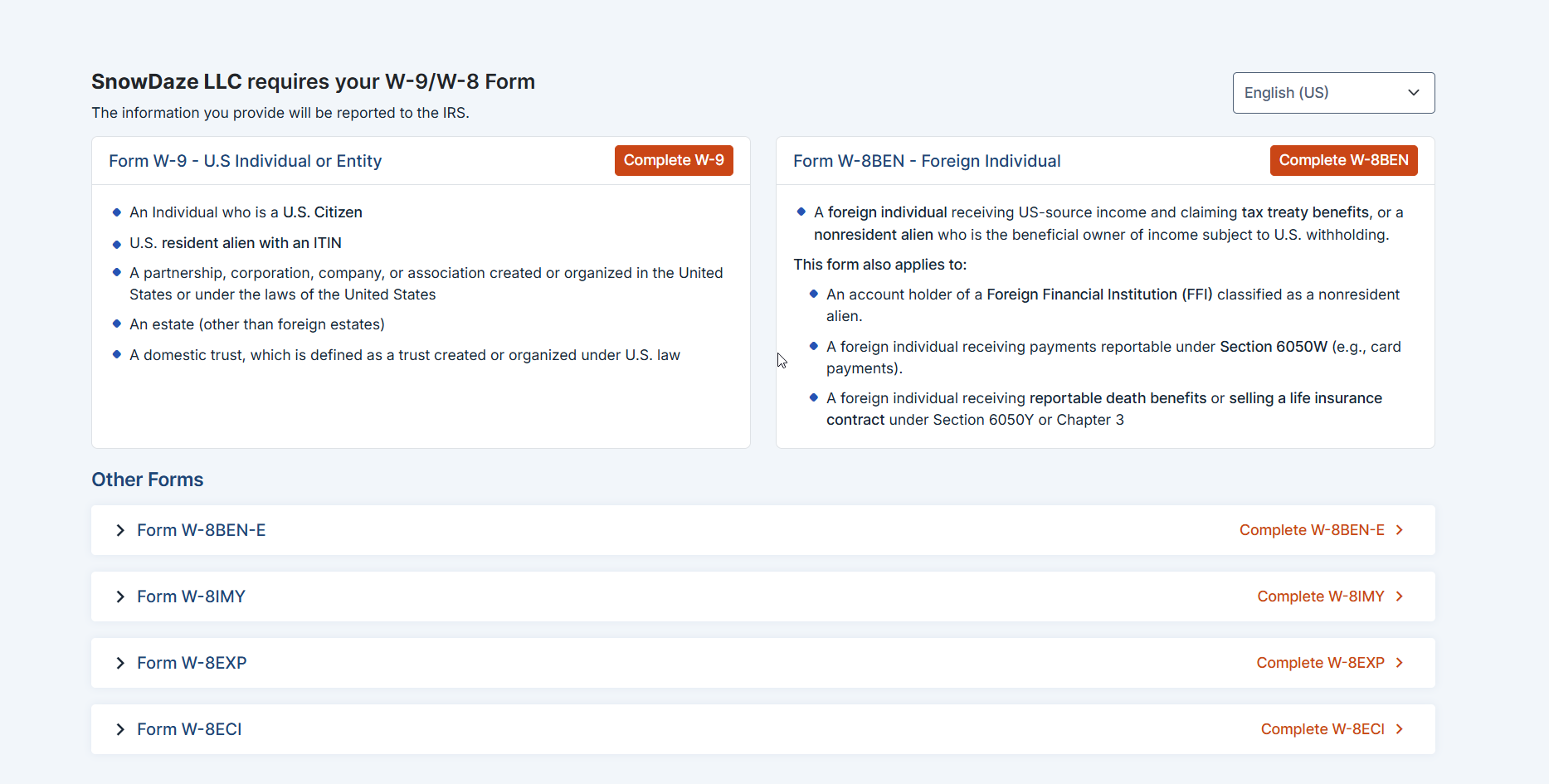
3. Form selection (Applicable only to WhCertificate endpoint)
If you use the WhCertificate endpoint, the recipients will have the option to choose and complete the appropriate
W-9/W-8 form. You can customize the list of forms displayed to recipients so they only see the ones relevant to them. This can be done from Developer Console → Settings → W-9/W-8 Settings.
4. Form completion
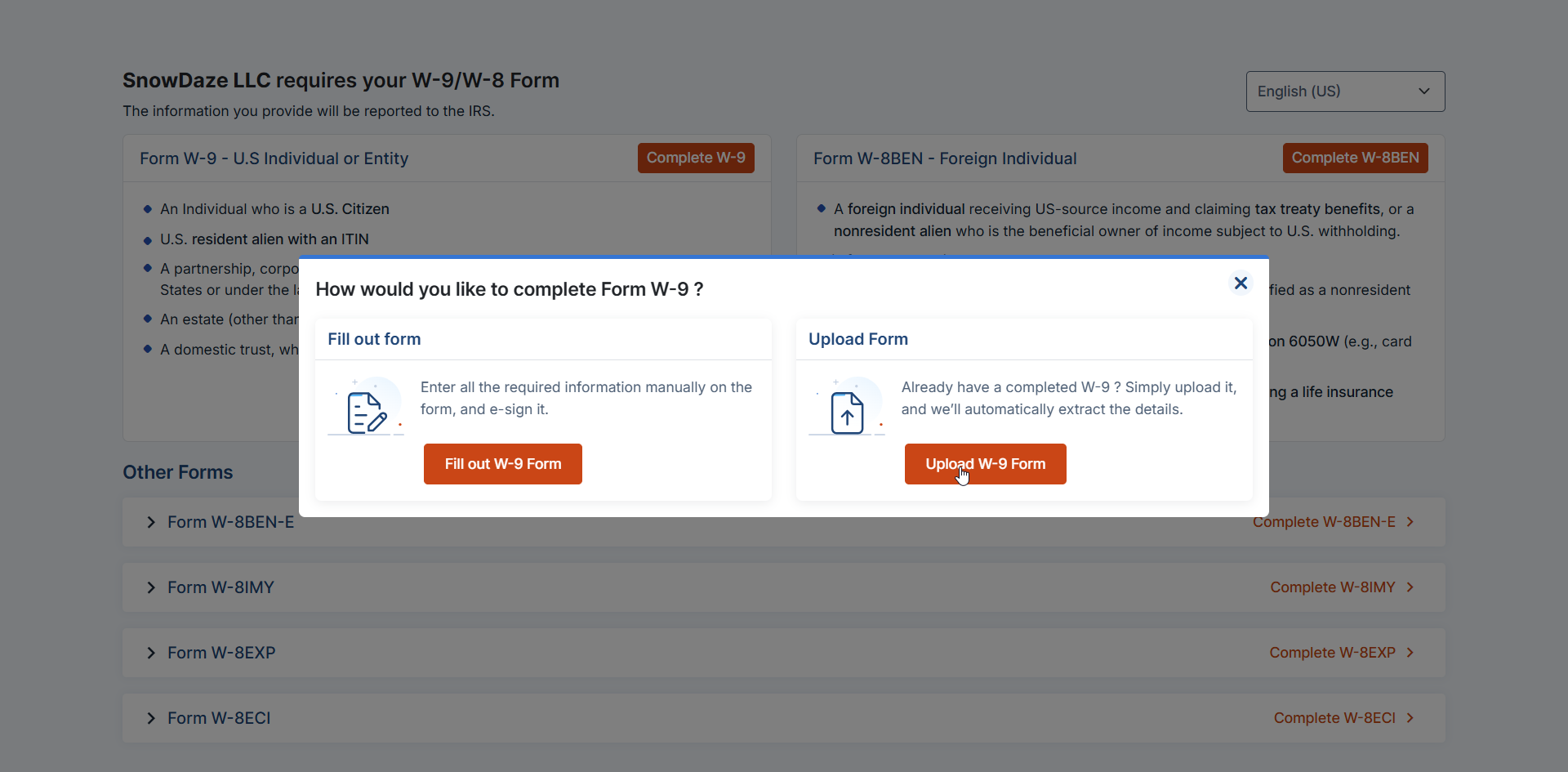
The recipients can complete the form in two ways.
- Fill and e-sign online
Recipients can enter their information directly in the form, review the details, and electronically sign before submitting.
- Upload an existing form
If the recipient already has a completed W-9 or W-8 BEN in PDF format, they can upload it. The system extracts the relevant details automatically, allowing them to review the information and add their electronic signature before submission.
5. Submission and notification
After the recipient completes and electronically signs the form:
- They see a confirmation screen indicating their submission was received.
- If TIN Matching was enabled, the verification process begins immediately in the background. The recipient is not notified of the TIN matching result — this is returned to the requestor (you) via webhook (if configured) or the
statusendpoint.